
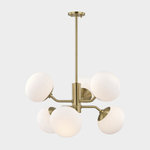
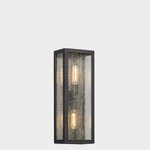
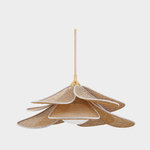
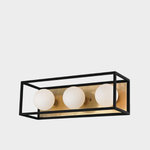



posting pics--- need help
pembroke
12 years ago
Sort by:Oldest
Comments (3)
Related Stories
MOST POPULAR7 Ways Cats Help You Decorate
Furry felines add to our decor in so many ways. These just scratch the surface
Full Story
ORGANIZINGHelp for Whittling Down the Photo Pile
Consider these 6 points your personal pare-down assistant, making organizing your photo collection easier
Full Story
LIFEDecluttering — How to Get the Help You Need
Don't worry if you can't shed stuff and organize alone; help is at your disposal
Full Story
STANDARD MEASUREMENTSThe Right Dimensions for Your Porch
Depth, width, proportion and detailing all contribute to the comfort and functionality of this transitional space
Full Story
PETSHow to Help Your Dog Be a Good Neighbor
Good fences certainly help, but be sure to introduce your pup to the neighbors and check in from time to time
Full Story
BATHROOM WORKBOOKStandard Fixture Dimensions and Measurements for a Primary Bath
Create a luxe bathroom that functions well with these key measurements and layout tips
Full Story
EXTERIORSHelp! What Color Should I Paint My House Exterior?
Real homeowners get real help in choosing paint palettes. Bonus: 3 tips for everyone on picking exterior colors
Full Story
ORGANIZINGDo It for the Kids! A Few Routines Help a Home Run More Smoothly
Not a Naturally Organized person? These tips can help you tackle the onslaught of papers, meals, laundry — and even help you find your keys
Full Story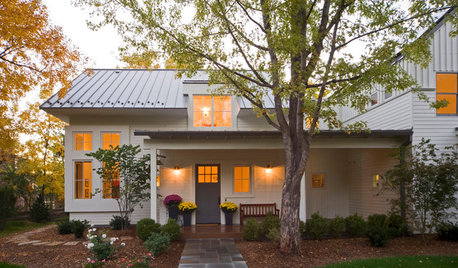
SELLING YOUR HOUSEHelp for Selling Your Home Faster — and Maybe for More
Prep your home properly before you put it on the market. Learn what tasks are worth the money and the best pros for the jobs
Full Story

irina_co
pembrokeOriginal Author
Related Professionals
Danbury Landscape Architects & Landscape Designers · Comstock Park Landscape Architects & Landscape Designers · Horsham Landscape Architects & Landscape Designers · Paradise Landscape Architects & Landscape Designers · Salem Landscape Contractors · Stamford Landscape Contractors · Brunswick Landscape Contractors · Deerfield Beach Landscape Contractors · Inglewood Landscape Contractors · Kerman Landscape Contractors · Lakewood Landscape Contractors · Red Oak Landscape Contractors · Ronkonkoma Landscape Contractors · Tinton Falls Landscape Contractors · Clearfield Landscape Contractorsirina_co